
Menu
-
-
Home Automation
- Home Automation Controllers
- Lighting & Appliance Controls
- Home Automation Sensors
-
Ventilation, Temperature & Flood Controls
- Ecovent Ventilation Controls
- Keen Home Ventilation Controls
- La Crosse Weather Reporting System
- Sensaphone Temperature/Flood
- Winland Temperature/Flood Reporting
- Ezlo Water/Flood Detection
- WaterBug Water/Flood Detection
- WaterCop Water/Flood Detection
- Specialty Water/Flood Detection
- Temperature & Heat Sensors
- Smart Irrigation Controllers
- Smart Thermostats & Ventilation Controls
- Drapery & Blind Opener Systems
- Window Opener Systems
- Door & Gate Opener Systems
- Garage Remotes & Controllers
- Smart Door Locks
-
Security
-
Home Intercom Systems
-
Specials
-
Audio/Video
-
Independent Living
-
Structured Wiring
-
More...
-
Our Brands
- 2GIG
- A&D Medical
- ABB
- Adorne
- Advanced Dynamics
- Aeotec
- Alfred
- American Hunter
- Applied Digital (ADI)
- AprilAire
- Aria Audio Technology
- Arlington Industries
- Applied Digital (ADI)
- AprilAire
- BackBoxx™
- Bellman & Symfon
- BlueSpray
- Cabletronix
- Caregiver Smart Home Automation
- Chamberlain
- Chief Manufacturing
- Cool Components
- Dakota Alert
- Danalock
- DataComm
- Data-Tronix
- D+H
- Displine
- DoorBell Fon
- DynaQuip Controls - Watercop
- Ecovent
- Elk Products
- Enbrighten
- Evolve Technologies
- Ezlo
- FirstAlert
- Flipper
- Flic
- GE
- GoControl
- Go Simply Connect
- Greenfield Direct
- Hamilton CapTel
- Home Controls In-House Exclusives
- HomeSeer
- Honeywell Home
- ION Digital
- Inovonics Wireless
- Interstate Batteries
- Intrasonic Technology (IST)
- Jasco
- KBSound
- Keen Home
- Kwikset
- La Crosse Alerts
- Letzgo Products
- Leviton
- Linear
- Linxura
- Lithe Audio
- Luxul
- Mail Chime
- MedReady
- myTouchSmart
- Napco Security Systems
- NETIO
- Nice North America
- NuTone
- OEM Systems Co.
- Presence Speakers
- On-Q By Legrand
- Open Sesame
- Optex
- Platinum Tools
- Powerline Control Systems
- Qolsys
- Resideo
- Risco Group
- Russound
- RYSE
- STI
- Sanus
- Satco
- Seco-Larm
- Security Door Controls (SDC)
- Sensaphone
- Sensative
- Serene Innovations
- Shelly
- Simply Automated, Inc. (SAI)
- Skylink
- Somfy Systems
- Sonic Alert
- Speco Technologies
- Stelpro
- Street Smart Security
- Structured Cable Products (SCP)
- TekTone
- Tripp Lite
- Truth Hardware
- U-Tec
- UCS
- USP
- Vera
- Versa
- VMP - Video Mount Products
- VSSL
- WeBoost
- Winland Electronics
- X10
- Yale
- ZTECH
- Shop By Compatibility
- Home Essentials
- Central Vac
-
Our Brands
-
- Orders
- Profile
- 1-858-693-8887
- Login
-
United States (USD $)
Add description, images, menus and links to your mega menu
A column with no settings can be used as a spacer
Link to your collections, sales and even external links
Add up to five columns
Add description, images, menus and links to your mega menu
A column with no settings can be used as a spacer
Link to your collections, sales and even external links
Add up to five columns
Speco DxVT Series DVR (D4VT/D8VT/D16VT) — Quick Setup Guide
August 31, 2026 2 min read
Quick setup guide for the Speco DxVT Series DVR (D4VT, D8VT, D16VT models) covering connections, EZ Setup, network configuration, and mobile viewing.
Full text manual (for reference)
Quick setup guide for the Speco Technologies DxVT Series DVR (D4VT, D8VT, D16VT models) — covers unboxing, initial connections, EZ Setup, network configuration, and mobile viewing. This manual is diagram-heavy; the full setup pages are included below as images along with a summary.
What's in the Box
- DxVT Series DVR unit
- Remote control
- Mouse
- Cables and power adaptor
Setup Reference
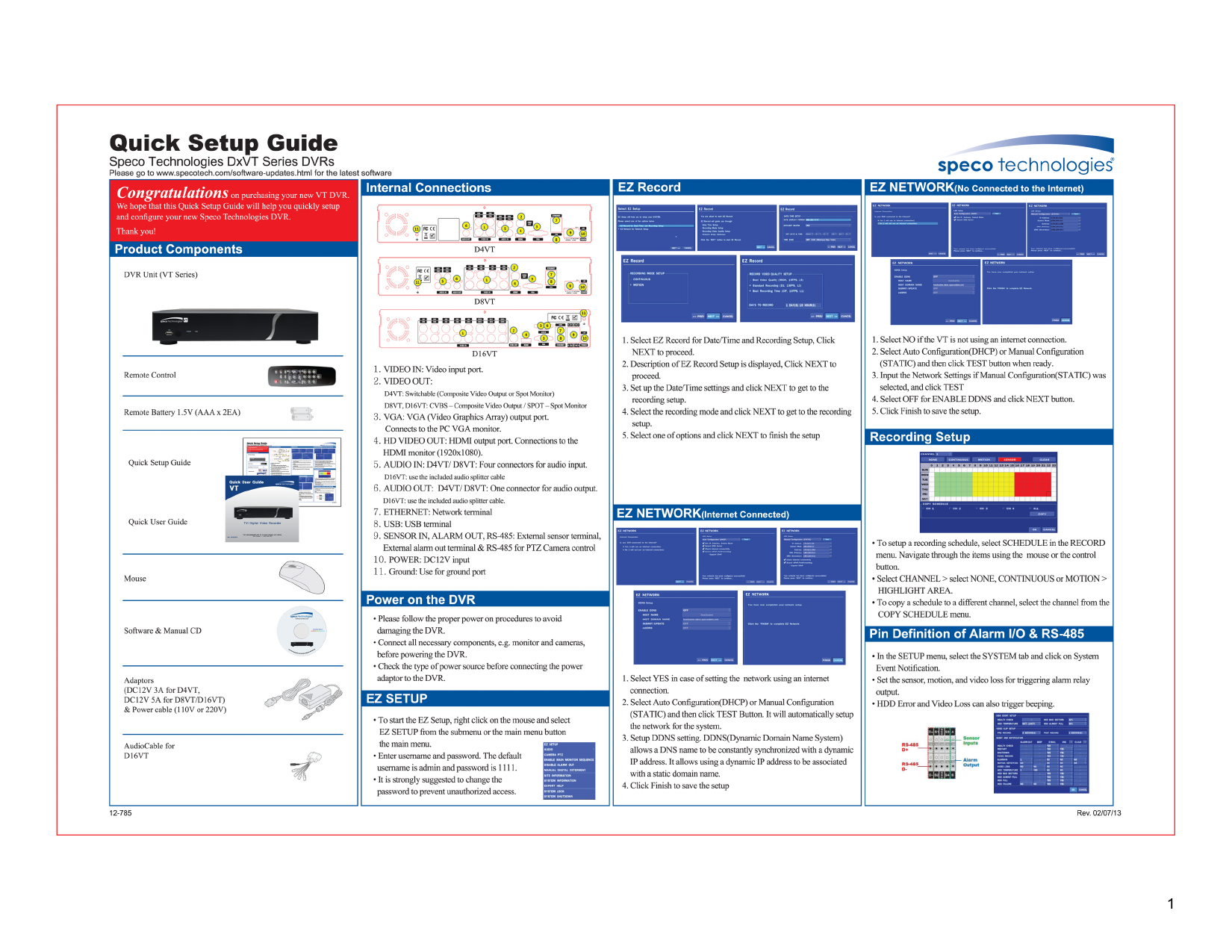
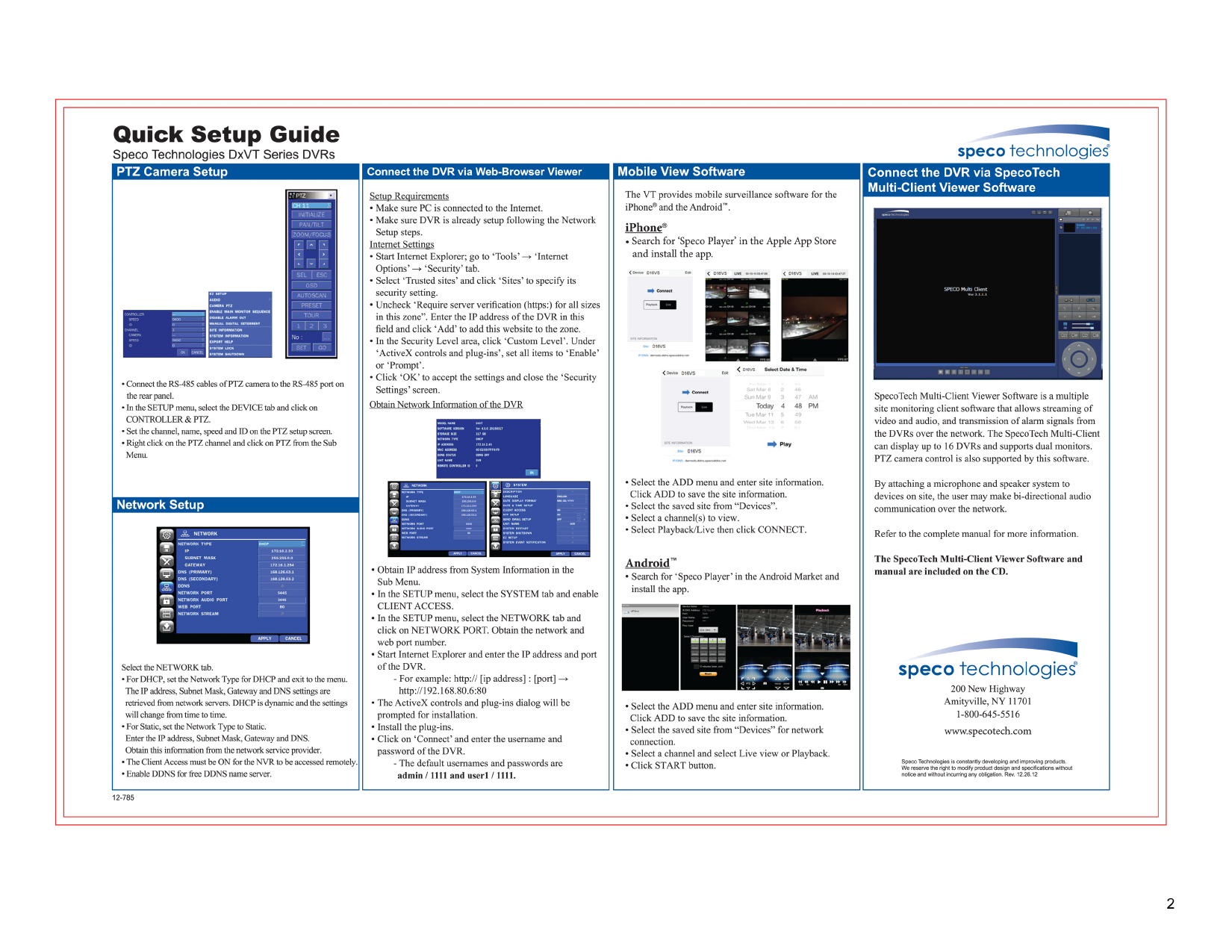
Initial Setup Overview
- Connect cameras and power per the internal connections diagram for your specific model (D4VT, D8VT, or D16VT).
- Power on the DVR and follow the on-screen EZ Setup wizard.
- Use EZ Record to configure basic recording, and EZ Network to set up either an internet-connected or standalone local network configuration.
- Set your desired recording schedule.
Network & Remote Access
- Configure DHCP or a Static IP for the DVR under Network Setup.
- Access the DVR remotely via a web browser (Internet Explorer settings covered in the guide) using the configured IP address.
- For mobile viewing, download the Speco mobile app (iPhone/Android) and enter the DVR's network details.
- The SpecoTech Multi-Client Viewer Software supports monitoring multiple DVR sites from one computer.
PTZ Camera Setup
PTZ (pan-tilt-zoom) camera protocol, address, and baud rate settings are configured through the DVR's camera setup menu — see page 2 for the exact menu screenshots and RS-485 wiring pin-out.
Manufacturer Contact
Speco Technologies — see the full downloadable PDF for company contact information and additional configuration details.
Subscribe
Sign up to get the latest on sales, new releases and more …