
Speco Technologies NXP Series NVR (N8NXP/N16NXP) — User Manual
Speco Technologies NXP Series Network Video Recorder — full setup, network configuration, and troubleshooting reference.
Full text manual (for reference)
The Speco Technologies NXP Series NVR (N8NXP/N16NXP) is a network video recorder supporting live view, recording, playback, and remote management of IP cameras. It supports plug-and-play with Speco's IP cameras via built-in PoE ports, and can be accessed remotely via web browser or SecureGuard® VMS.
Key Features
- Live view layouts: 1x1, 2x2, 3x3, and 4x4 (N16NXP only); HDMI and VGA outputs; PTZ control interface
- Records up to 4K resolution on every channel at 30fps max
- Instant playback with slow/fast/backward play, frame-by-frame play, and EZ Search (thumbnail-based search)
- Export clips to USB flash drives and hard drives
- Up to 128 user accounts with customizable group access permissions
- Continuous, motion, and sensor recording modes; alarm triggers via motion, sensor, or tampering — can trigger a relay device or Digital Deterrent®, and send email alerts
- Local and remote firmware upgrades via web browser
Specifications
| Spec | N8NXP | N16NXP |
|---|---|---|
| System resources | 8 connections, 200Mbps total camera bandwidth | 16 connections, 200Mbps total camera bandwidth |
| OS | Embedded Linux real-time OS | |
| Compression | H.265/H.264 | |
| Decode capability (local) | Up to 16ch @ 720p/30fps, 8ch @ 1080p/30fps, 4ch @ 4MP/30fps | |
| Video input | 8 channels, network video | 16 channels, network video |
| Video output | 1 HDMI, 1 VGA | |
| Alarm input / output | 4 / 2 | 16 / 4 |
| Storage | 2 slots, up to 6TB each | 4 slots, up to 6TB each |
| RS232 / RS485 | N/A | 1 / 1 |
| USB | 1 USB 3.0, 1 USB 2.0 | |
| Network / PoE ports | 1 Gigabit Ethernet / 8 PoE | 1 Gigabit Ethernet / 16 PoE |
| Power | AC 100-240V, 50-60Hz, 80W PoE budget | AC 100-240V, 50-60Hz, 150W PoE budget |
| Operating temp / humidity | 14°F ~ 131°F / 10%~90% RH | |
| Dimensions (WxHxL) | 14.8" x 2.1" x 12.9" | 17.3" x 3.0" x 16.2" |
| Weight | 7 lbs | 11.5 lbs |
Important Safeguards
- Ground the product to reduce risk of electric shock. All installation/operation must conform to local electrical safety codes.
- Avoid heavy stress, violent vibration, or water splash during transport, storage, and installation.
- Do not apply power before completing installation. Do not place objects on the NVR.
- All examination and repair should be done by qualified service engineers — unauthorized modification voids liability coverage.
- Install in a cool, dry place away from direct sunlight and flammable/explosive substances; ensure good ventilation and don't block the vents.
- Lithium battery caution: Risk of explosion if replaced with an incorrect battery type. Dispose of used batteries per local regulations.
Front & Rear Panel Reference
Front panel indicators: LAN (blue when network connected), PWR (blue when power normal), HDD (blue when hard drive operating normally).
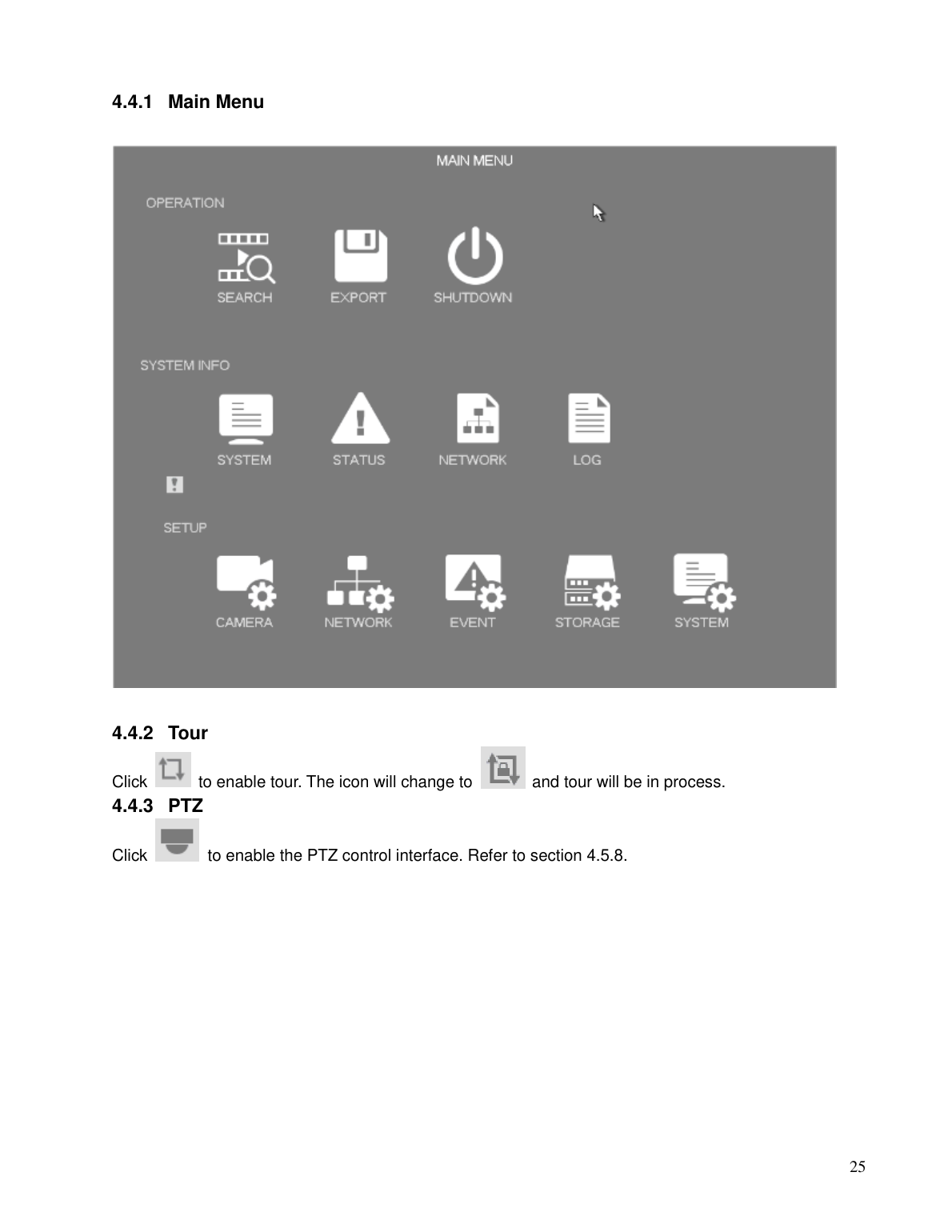
Rear panel ports include USB 3.0, Network (Gigabit Ethernet), HDMI v1.4, VGA, Power button, MIC IN/OUT (two-way audio), RS232 and RS485 (N16NXP only), sensor inputs (4 on N8NXP / 16 on N16NXP), relay outputs (NO/C terminals), a CTRL 12V relay/power output, and a +12V DC power output (for devices under 1A).
EZ Setup & Startup
On first boot, the EZ Setup wizard walks through password creation, date/time, network, and basic camera configuration. Use the mouse (right-click for menus) for local operation. Change or reset the password anytime under System Setup > Account.
Camera, Recording & Storage Setup
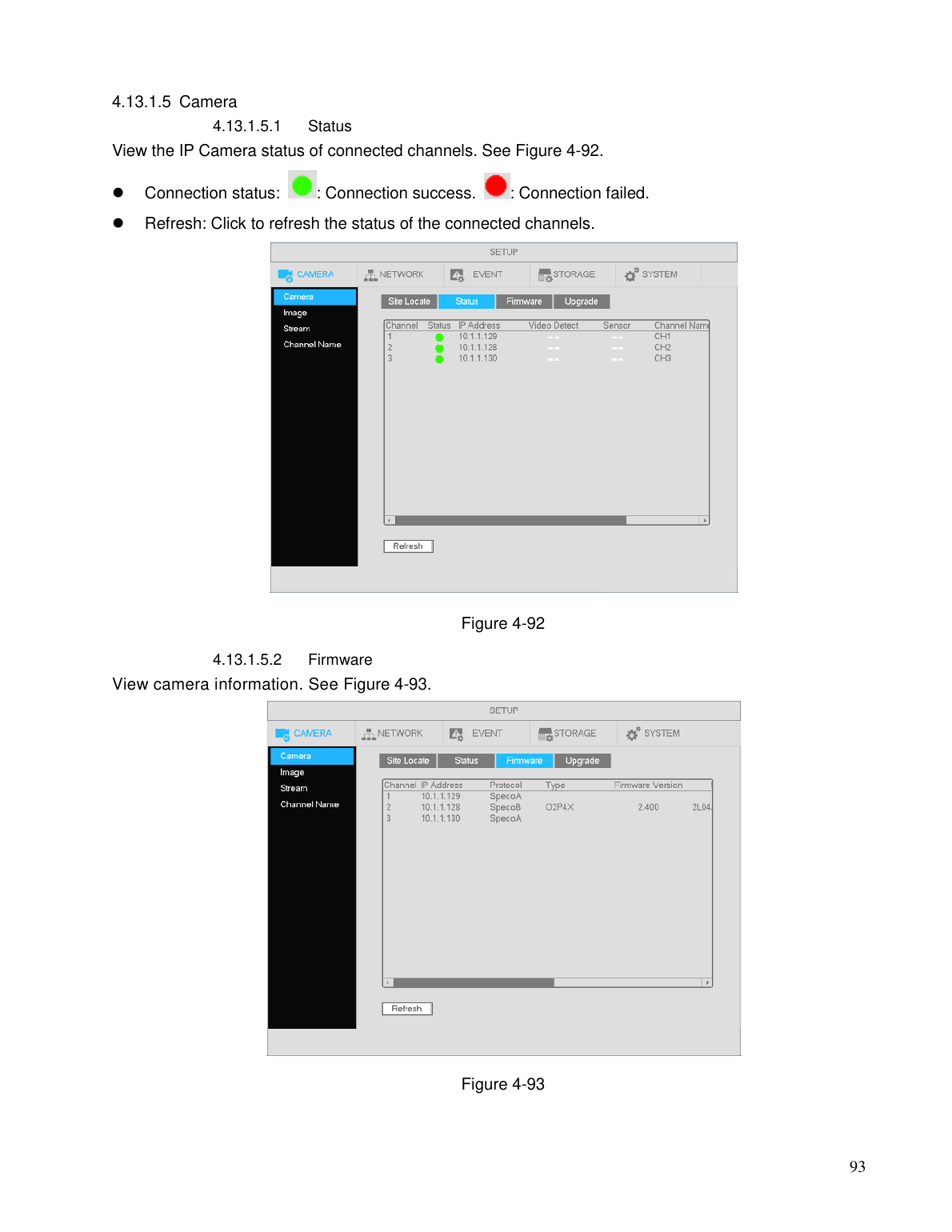
- Camera: auto-detects PoE-connected Speco IP cameras; configure image, channel names, PTZ control, and display sequencing.
- Recording: configure stream/snapshot settings, scheduled recording, motion-detection recording, alarm-triggered recording, manual recording, and holiday recording schedules.
- Playback & Export: instant playback, search interface with bookmark pins, snapshot playback, and file backup/export (with backup logs and USB auto-pop-up).
- HDD Setup: format, view HDD information, advanced RAID-like settings, and manual/automatic HDD health detection with reports.
Network & Remote Access
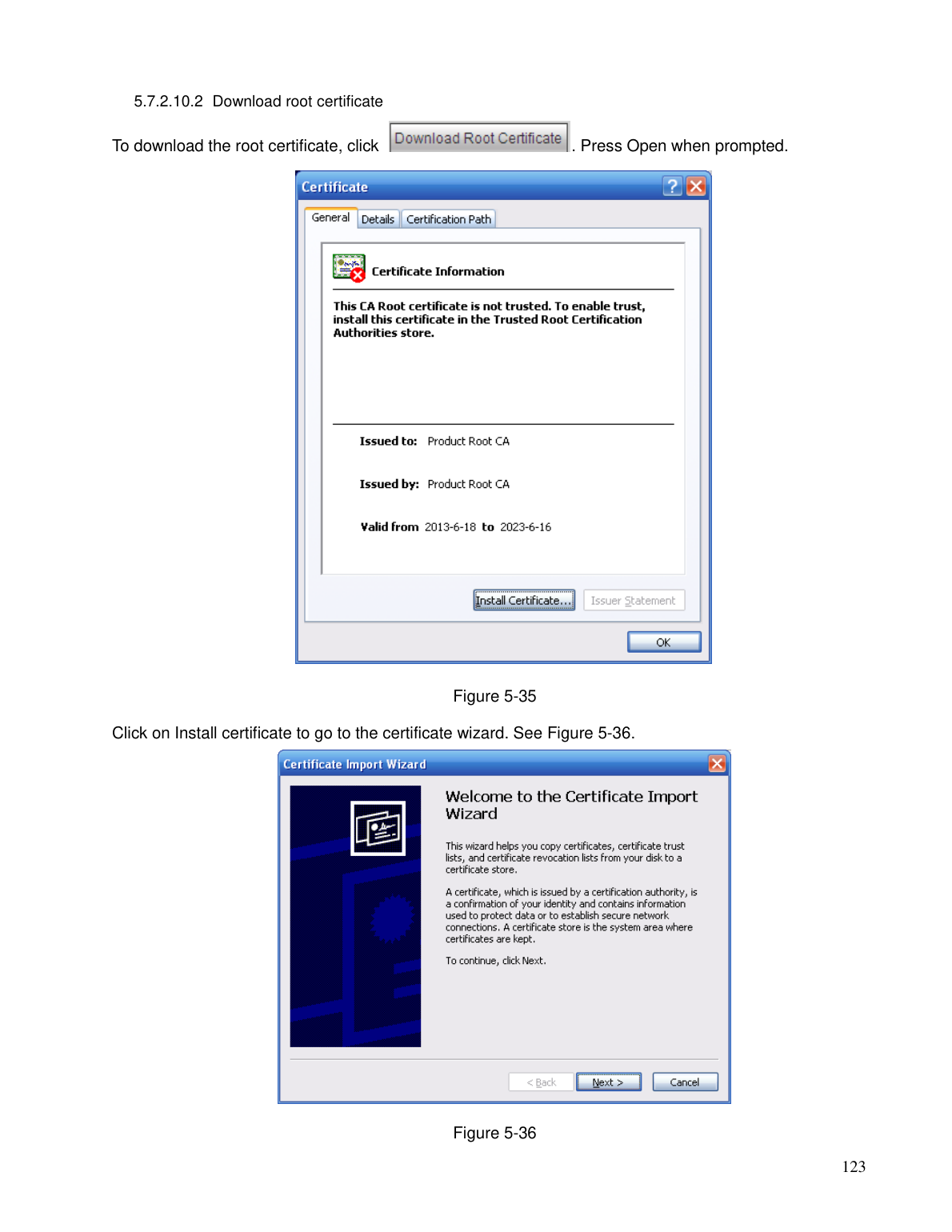
Configure TCP/IP, PPPoE, DDNS, UPnP (EZ Network), IP filtering, Email alerts, FTP, and Multicast under Setup > Network. For secure remote access, set up HTTPS: create a server certificate, download the root certificate, then set the HTTPS port.
Two-Way Audio
Connect a microphone to the MIC IN port on the rear panel and a speaker to the MIC OUT port (or PC audio output for remote two-way audio). Enable two-way audio from the web viewer login.
Troubleshooting
| Issue | Possible Causes / Fix |
|---|---|
| NVR does not boot up properly | Check power supply; incomplete firmware upgrade (contact support); check front panel indicators for main board damage. |
| NVR shuts down or stops running | Unstable/low input voltage; HDD malfunction; harsh/dusty environment; hardware fault (contact support). |
| System can't detect HDD | HDD malfunction; check ribbon cable; main board SATA port fault (contact support). |
| No video output | Check HDMI/VGA connection and monitor input source; check brightness; check front panel indicators. |
| No results when searching recordings | HDD malfunction; file overwritten; record function disabled. |
| Incorrect time display | Go to Setup to set the correct time. |
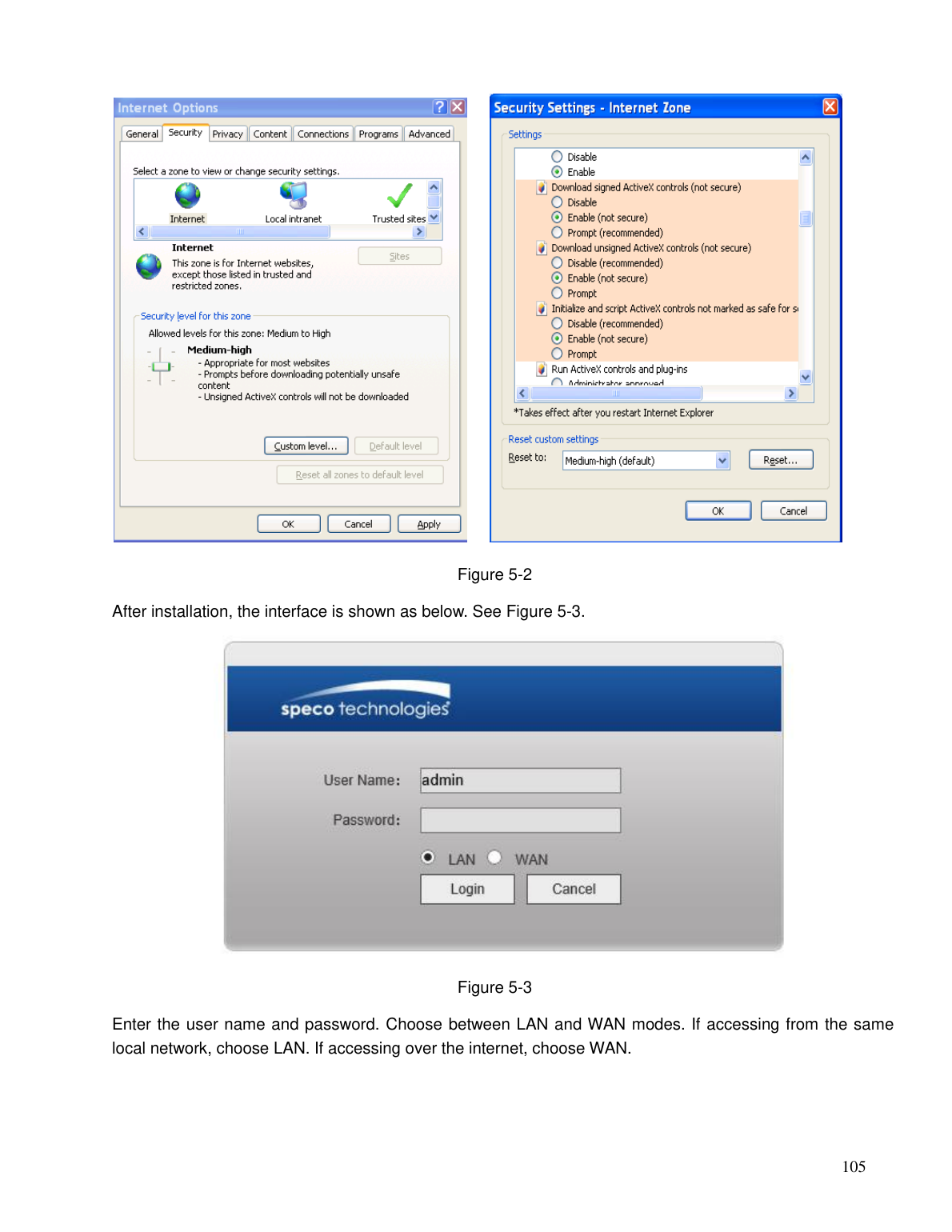
| Unable to log in remotely | Enable ActiveX in Internet Explorer; check network settings; verify username/password. |
| No video when connected remotely | Poor bandwidth; max remote connections reached; user lacks viewing authorization (set in Setup). |
| Network connection not stable | Check for IP address conflicts; verify port forwarding; check PC network settings. |
| File backup errors | Stop recording before backup; check file size vs. available capacity; try a different USB device. |
| Forgot password | Answer the security questions on the login prompt; contact support if those are also forgotten. |
| No video on IP camera channels | Verify camera IP address, port, and credentials in Setup > Camera; confirm camera is online. |
| Video stutters in split-screen | Split-screen viewing requires 100Mbps+ bandwidth; check PC resources. |