RemoteLock (LockState) LS-5i — Internet Connection Setup Guide
Quick reference guide for connecting a RemoteLock (LockState) LS-5i smart lock to your home Wi-Fi network and registering it on the web management portal.
Full text manual (for reference)
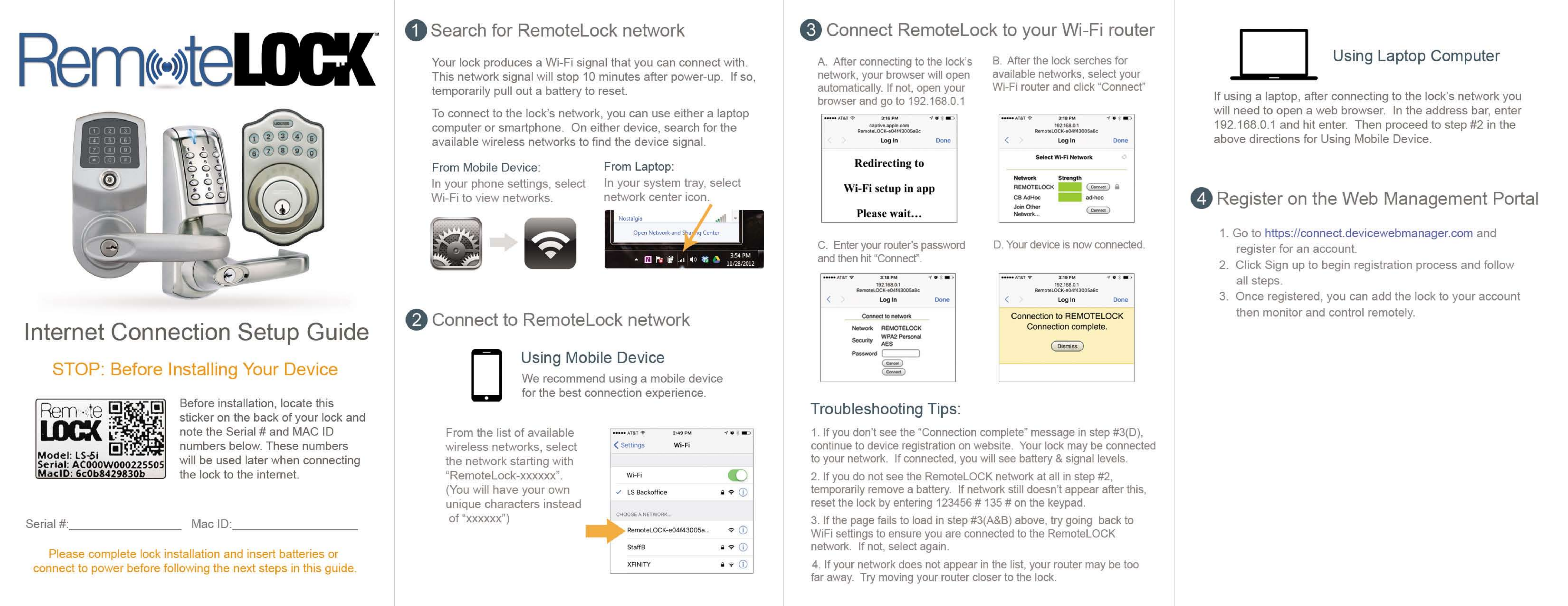
This is a highly illustrated quick-reference brochure — the full step-by-step diagrams are best viewed in the downloadable PDF or the image below. This page summarizes the setup flow for connecting a RemoteLock (LockState) LS-5i smart lock to your home Wi-Fi network.
Before You Start
- Locate the sticker on the back of the lock listing the Model (LS-5i), Serial Number, and MAC ID — write these down for reference.
- Complete the physical lock installation and insert batteries/power before proceeding with network setup.
Setup Overview
- Search for the RemoteLock network: The lock broadcasts its own Wi-Fi signal for 10 minutes after power-up. On a mobile device, go to Settings > Wi-Fi; on a laptop, use the system tray network icon.
- Connect to the RemoteLock network: Using a mobile device is recommended for best results. Select the network named "RemoteLOCK-[device ID]..." from your Wi-Fi list.
- Connect the lock to your home Wi-Fi router: Your device will auto-redirect to a Wi-Fi setup page. Select your home network from the list, click Connect, enter your router's password, and wait for the "Connection complete" confirmation.
- Register on the Web Management Portal: Go to connect.devicewebmanager.com, click "Sign up," and follow the registration steps. Once registered, add the lock to your account to monitor and control it remotely.
Using a Laptop Instead of a Mobile Device
Manually enter 192.168.0.1 into your browser's address bar, then follow the same Step 2/3 instructions as the mobile flow.
Troubleshooting
| Issue | What to Try |
|---|---|
| "Connection complete" doesn't appear | Double-check the router password you entered and retry the connection step. |
| RemoteLock network isn't visible | Remove and reinsert the battery to reset, or use the keypad reset code: 123456 # 135 # |
| Setup pages fail to load | Move closer to the lock, confirm your device is still connected to the RemoteLOCK network, and retry. |
| Home network doesn't appear in the Wi-Fi list | Your router may be too far away — move the lock/router closer together, or use a Wi-Fi extender near the lock. |