
Jasco Pro Series ZWN4109/79244 — Plug-In Smart Switch User Manual
Quick reference guide for the Jasco Pro Series Smart Plug-In Switch/Outlet (ZWN4109/79244), a Z-Wave Long Range certified plug-in outlet control.
Full text manual (for reference)
Quick reference guide for the Jasco Pro Series Smart Plug-In Switch/Outlet, model ZWN4109 / 79244 — a Z-Wave Long Range certified plug-in outlet for lamps, small appliances, and motors.
Overview
Certified as Z-Wave Plus LR (Long Range) wireless lighting control, this plug-in module controls one AC outlet remotely via a Z-Wave hub, and can also be switched manually with the button on top. It can be added to a network as either a standard Z-Wave or Z-Wave Long Range device (a Long Range hub is required to use LR mode).
Features
- Controls an AC outlet for standard incandescent lighting, CFL/LED lamps, fans, or small appliances
- Maximum load: 1250W tungsten, 1875W (15A) resistive, or 1/2 HP motor
- Remote ON/OFF via Z-Wave controller, plus manual ON/OFF via the top button
- Three-wire grounded power connection for safety
- Advanced settings adjustable via a Z-Wave controller supporting the Configuration command class (see www.ezzwave.com/config)
Device Layout
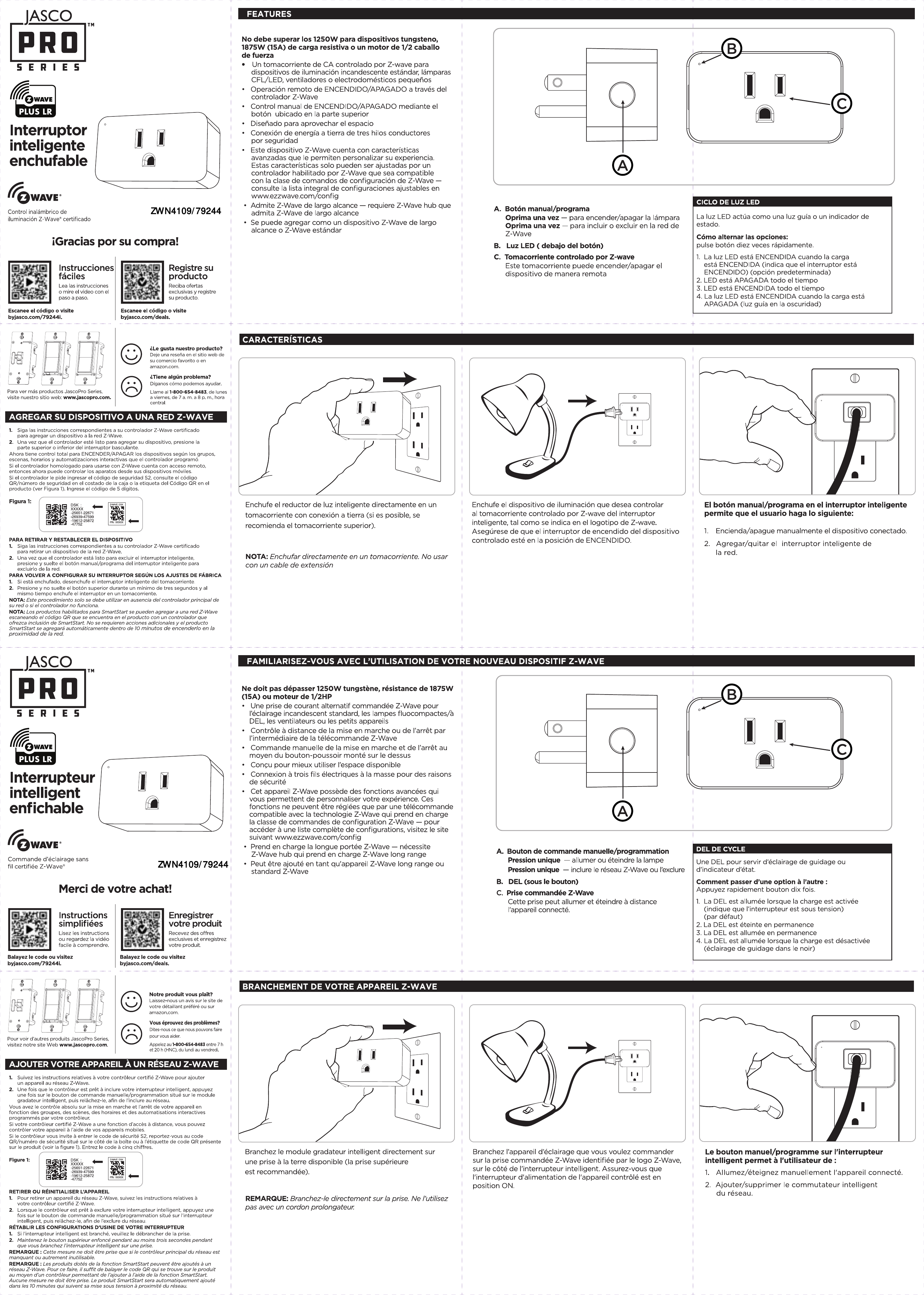
- A — Manual/Program Button: press once to turn the connected lamp/device on or off; also used to include or exclude the switch from a Z-Wave network
- B — LED Light: status indicator below the button
- C — Z-Wave Controlled Outlet: the outlet that turns the connected device on/off remotely
LED Light Cycle
Press the button ten times rapidly to cycle through LED behavior options:
- LED ON when load is ON (default)
- LED OFF at all times
- LED ON at all times
- LED ON when load is OFF (guide light in the dark)
Setup Steps
- Plug the smart switch directly into a grounded outlet (top outlet of a duplex is recommended). Do not use with an extension cord.
- Plug the lighting device or appliance you want to control into the Z-Wave controlled outlet (marked with the Z-Wave logo). Make sure that device's own power switch is in the ON position.
- Use the manual/program button to control the connected device on/off, or to add/remove the switch from your network.
Adding to a Z-Wave Network
- Follow your Z-Wave certified controller's instructions to add a device to the network.
- When the controller is ready to add the device, press the top or bottom part of the rocker/button once.
Once added, you can control the device by groups, scenes, schedules, and automations. If your controller supports remote access, you can also control it from your mobile device.
If the controller requests the S2 security code, refer to the QR code / DSK number on the box or the product's code label — scan it, or type the 5-digit code manually.
SmartStart: SmartStart-enabled controllers can add this product automatically by scanning its QR code — no additional action is needed, and it will be included within 10 minutes of being powered on near the network.
Removing / Excluding
- Put your Z-Wave controller into Remove / Exclusion mode.
- Press and release the manual/program button to exclude the switch from the network.
Factory Reset
- Unplug the smart switch from the outlet.
- Press and hold the top button for a minimum of 3 seconds while simultaneously plugging the switch back into the outlet.
Note: Only use this procedure in the absence of the network's main controller, or if the controller isn't functioning.
Support
For issues, call Jasco Pro support at 1-800-654-8483, Monday–Friday, 7 a.m.–8 p.m. Central time. More Jasco Pro products: www.jascopro.com.