
Menu
-
-
Home Automation
- Home Automation Controllers
- Lighting & Appliance Controls
- Home Automation Sensors
-
Ventilation, Temperature & Flood Controls
- Ecovent Ventilation Controls
- Keen Home Ventilation Controls
- La Crosse Weather Reporting System
- Sensaphone Temperature/Flood
- Winland Temperature/Flood Reporting
- Ezlo Water/Flood Detection
- WaterBug Water/Flood Detection
- WaterCop Water/Flood Detection
- Specialty Water/Flood Detection
- Temperature & Heat Sensors
- Smart Irrigation Controllers
- Smart Thermostats & Ventilation Controls
- Drapery & Blind Opener Systems
- Window Opener Systems
- Door & Gate Opener Systems
- Garage Remotes & Controllers
- Smart Door Locks
-
Security
-
Home Intercom Systems
-
Specials
-
Audio/Video
-
Independent Living
-
Structured Wiring
-
More...
-
Our Brands
- 2GIG
- A&D Medical
- ABB
- Adorne
- Advanced Dynamics
- Aeotec
- Alfred
- American Hunter
- Applied Digital (ADI)
- AprilAire
- Aria Audio Technology
- Arlington Industries
- Applied Digital (ADI)
- AprilAire
- BackBoxx™
- Bellman & Symfon
- BlueSpray
- Cabletronix
- Caregiver Smart Home Automation
- Chamberlain
- Chief Manufacturing
- Cool Components
- Dakota Alert
- Danalock
- DataComm
- Data-Tronix
- D+H
- Displine
- DoorBell Fon
- DynaQuip Controls - Watercop
- Ecovent
- Elk Products
- Enbrighten
- Evolve Technologies
- Ezlo
- FirstAlert
- Flipper
- Flic
- GE
- GoControl
- Go Simply Connect
- Greenfield Direct
- Hamilton CapTel
- Home Controls In-House Exclusives
- HomeSeer
- Honeywell Home
- ION Digital
- Inovonics Wireless
- Interstate Batteries
- Intrasonic Technology (IST)
- Jasco
- KBSound
- Keen Home
- Kwikset
- La Crosse Alerts
- Letzgo Products
- Leviton
- Linear
- Linxura
- Lithe Audio
- Luxul
- Mail Chime
- MedReady
- myTouchSmart
- Napco Security Systems
- NETIO
- Nice North America
- NuTone
- OEM Systems Co.
- Presence Speakers
- On-Q By Legrand
- Open Sesame
- Optex
- Platinum Tools
- Powerline Control Systems
- Qolsys
- Resideo
- Risco Group
- Russound
- RYSE
- STI
- Sanus
- Satco
- Seco-Larm
- Security Door Controls (SDC)
- Sensaphone
- Sensative
- Serene Innovations
- Shelly
- Simply Automated, Inc. (SAI)
- Skylink
- Somfy Systems
- Sonic Alert
- Speco Technologies
- Stelpro
- Street Smart Security
- Structured Cable Products (SCP)
- TekTone
- Tripp Lite
- Truth Hardware
- U-Tec
- UCS
- USP
- Vera
- Versa
- VMP - Video Mount Products
- VSSL
- WeBoost
- Winland Electronics
- X10
- Yale
- ZTECH
- Shop By Compatibility
- Home Essentials
- Central Vac
-
Our Brands
-
- Orders
- Profile
- 1-858-693-8887
- Login
-
United States (USD $)
Add description, images, menus and links to your mega menu
A column with no settings can be used as a spacer
Link to your collections, sales and even external links
Add up to five columns
Add description, images, menus and links to your mega menu
A column with no settings can be used as a spacer
Link to your collections, sales and even external links
Add up to five columns
IST View App Setup Manual — IST V500/V510 Series Video Monitors
September 08, 2026 2 min read
App setup manual for the IST View app, used to configure and manage Intrasonic Technology V500/V510 series indoor video monitors and security systems.
Full text manual (for reference)
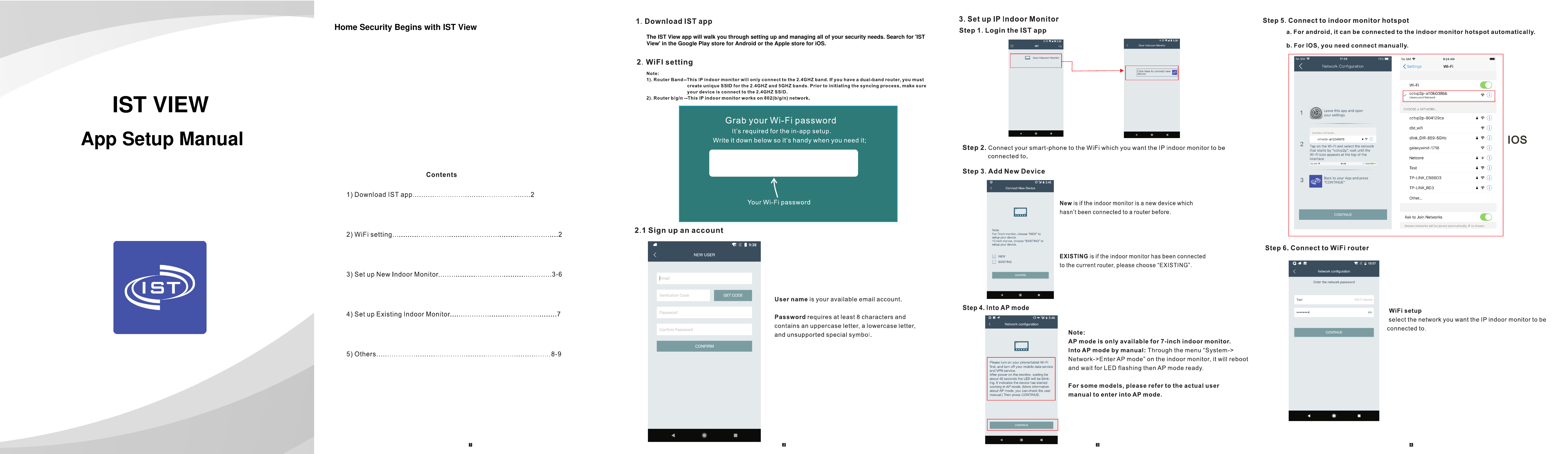
App setup manual for the Intrasonic Technology (IST) View app, used to set up and manage IST V500/V510 series indoor video monitors and security systems. Search "IST View" in the Google Play Store (Android) or Apple App Store (iOS) to download.
Setup Overview
- Download and install the IST View app, then create an account (email + verification code + password).
- Confirm your home Wi-Fi network is 2.4GHz (write down the Wi-Fi password before starting — the app will prompt for it).
- Log into the app and choose "Add New Device" (for a brand-new monitor) or "Add Existing Device" (if the monitor is already configured elsewhere).
- Put the indoor monitor into AP (Access Point) mode following the on-screen prompt.
- Connect your phone to the monitor's Wi-Fi hotspot — the connection steps differ slightly between Android and iOS, both illustrated in the full app screenshots below.
- Select and connect to your home Wi-Fi router from within the app.
- Name the device and set a password to finish adding the monitor.
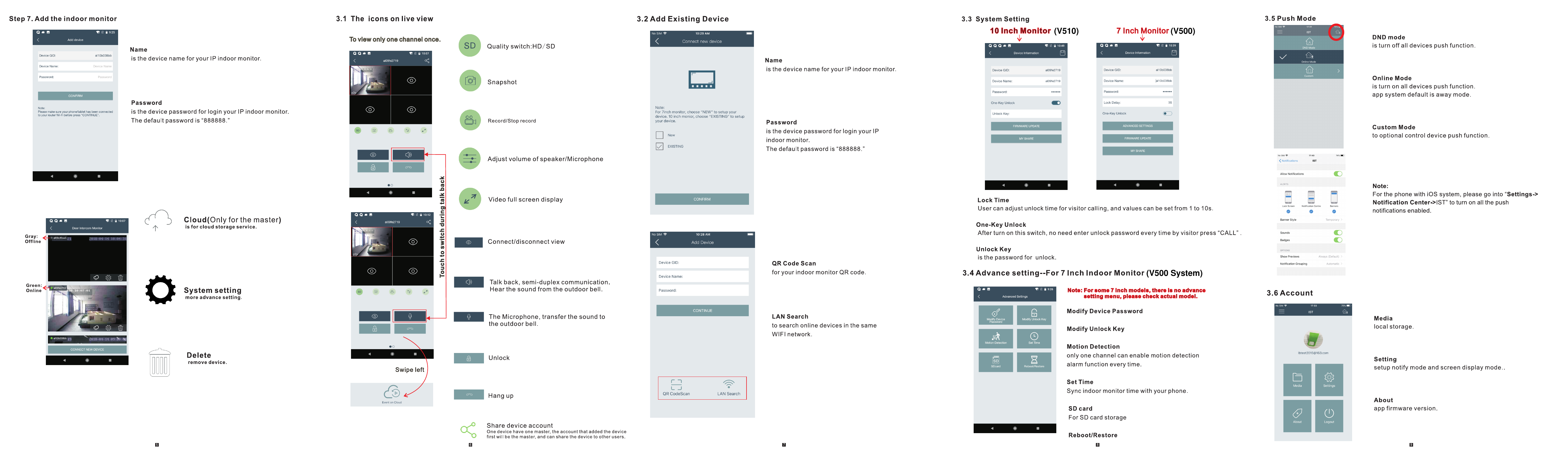
Live View Icon Legend
- Quality switch — toggle stream resolution
- Snapshot — capture a still image
- Record — start/stop local video recording
- Talk-back — two-way audio through the monitor's speaker/mic
- Online / Offline status indicators show device connectivity at a glance
- Device management icons: settings, delete, and share
System & Advanced Settings
- System settings differ slightly between the 10" and 7" monitor models — menu layout varies but core options (password, unlock key, motion detection, SD card management) are the same.
- Push notification modes: Do Not Disturb (DND), Online, and Custom scheduling.
- Account settings cover cloud/SD storage, initial device setup, and app "About" info.
Full App Screenshots
The two reference sheets below show every screen and step of the setup flow in detail, including exact button placement and field labels for both new-device and existing-device setup paths.
Subscribe
Sign up to get the latest on sales, new releases and more …