
Hamilton CapTel 2400iBT — Captioned Telephone Setup Guide
Setup guide for the Hamilton CapTel 2400iBT captioned telephone, covering installation, network connection, FCC-required registration, and Bluetooth headset pairing.
Full text manual (for reference)
Setup guide for the CapTel 2400iBT captioned telephone from Hamilton (Ultratec, Inc.) — a captioned phone that connects to the Internet to show word-for-word captions of what callers say, transcribed by a live communications assistant.
Important: per FCC ruling, the Captions feature cannot be activated until your phone is registered. Follow the on-screen registration steps during setup.
What's in the Box
- CapTel 2400iBT Phone
- Telephone Cord
- Power Adapter (use ONLY the adapter included in the box — any other adapter may damage the phone)
- Ethernet Cable (not necessary for WiFi installations)
- CapTel Setup Guide and User Manual
Phone Overview
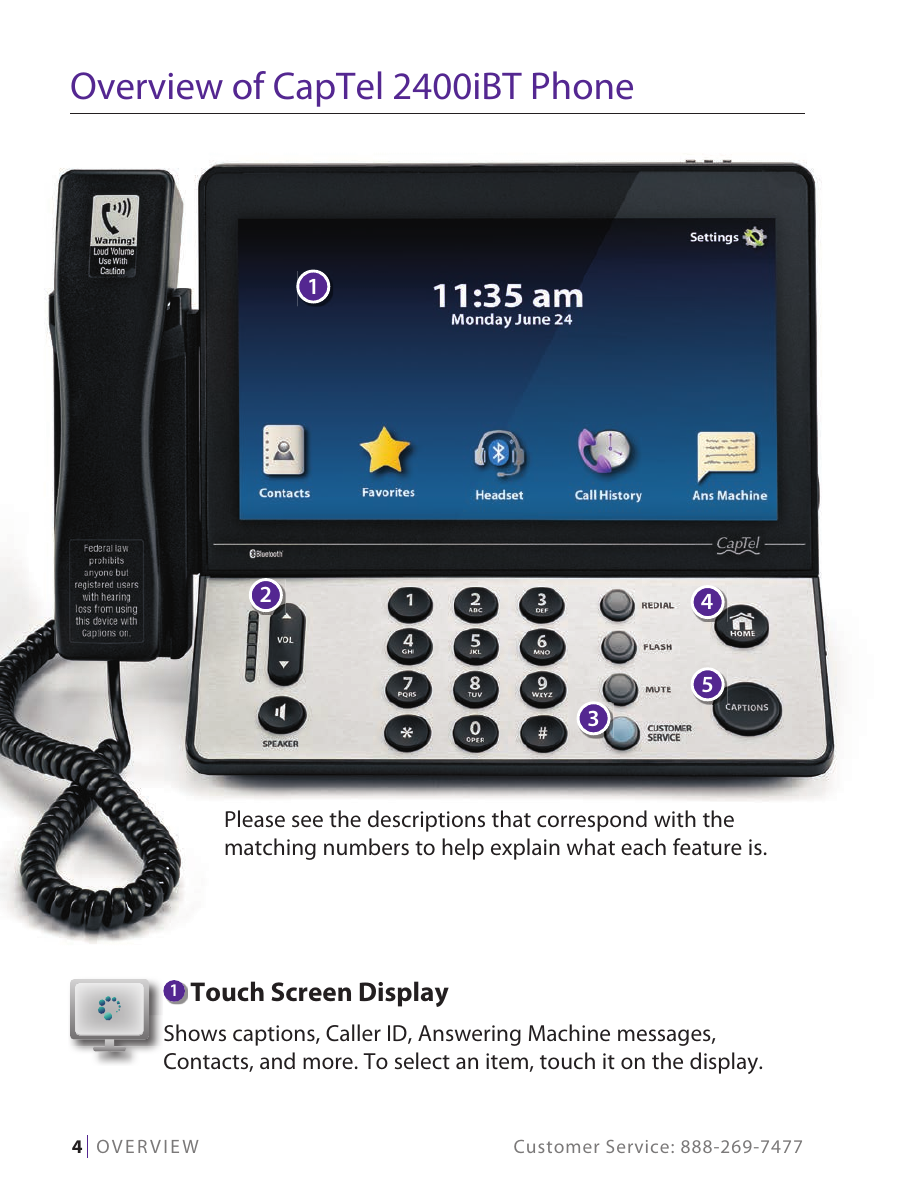
- Touch Screen Display — shows captions, Caller ID, answering machine messages, contacts, and more.
- Volume Button — adjusts volume up to a 40dB gain. Resets to mid-range every time you hang up. Warning: the maximum setting is very loud — people who don't need amplification should avoid the highest level.
- CUSTOMER SERVICE Button — auto-dials the CapTel help line (24/7, closed major holidays).
- HOME Button — returns to the main menu screen from anywhere.
- CAPTIONS Button — toggles word-for-word captions on/off during a call (blue light = on).
- Back panel: Telephone jack (RJ11 — works with analog, VOIP, fiber optic, digital cable, or analog+DSL; not compatible with PBX unless an analog port is available), Ethernet jack, LNK/ACT status light, Power jack, and kickstand.
Setup Requirements
- High-speed Internet access (Ethernet or WiFi; a router may be needed to share the connection with other devices)
- Telephone service (analog, DSL with filter, VOIP, fiber optic, or Digital Cable phone service — not compatible with digital PBX systems unless an analog port is available)
- Standard electrical power (AC adapter to wall outlet)
Setup Steps
Step 1: Select a Location
Pull out the kickstand and place the phone somewhere with a nearby Internet jack or WiFi router, a nearby phone jack, a nearby electrical outlet, a stable/secure surface, and protection from excessive heat or humidity. If your Internet access is in a different room, WiFi setup is recommended.
Step 2: Plug in the Power Adapter
Plug the power cord into the "Power" jack on the back, then plug the adapter into a wall outlet or power strip. The display and volume indicator lights confirm power.
Step 3: Select Language
Touch the English or Español flag icon, then touch "next."
Step 4: Telephone Line
Plug the telephone line into the back of the phone and into your wall jack. If your office environment requires a dialing prefix (e.g. "9") to get an outside line, you can enter it here so CapTel dials it automatically; otherwise choose "no."
Step 5: Network Connection
Wired: plug the included Ethernet cable into the phone's "Ethernet" jack and the other end into your cable/DSL modem, router, or Ethernet wall outlet.
WiFi: touch "Use WiFi Network" — CapTel scans and lists nearby networks by signal strength. Select your network (be careful to pick your own network, not a neighbor's), touch "Connect," then enter your WiFi password using the onscreen keyboard (case-sensitive) and touch "save." If your network isn't listed, move closer to the router and touch "Refresh," or use "Enter Manually."
Step 6: Time and Date
Touch your time zone, then "next." CapTel auto-fills date/time based on time zone; adjust manually if needed using the on-screen arrows, then touch "next."
Step 7: Software
The phone checks for and installs the latest software automatically. Do not remove power during a software installation — it may damage the phone. The phone will reboot and re-run setup automatically after an update.
Registration (Required by FCC)
The Captions feature cannot be activated until you complete registration. There are three ways to register: touch "Register Now" on the phone, register online at www.captel.com/register, or press the CUSTOMER SERVICE button for help.
- Touch "Register Now" and enter your first name, last name, address, city, state, zip, email, and phone number using the onscreen keyboard.
- Enter your birthday and the last 4 digits of your SSN (required by the FCC to prevent misuse of the free captioning service; kept confidential).
- Confirm your registration information is correct.
- Answer four required attestations (touch "Yes" for each): that you have a hearing loss requiring captioned telephone service; that you understand captions are provided by a live communications assistant; that you understand the service is funded through a federal program; and that you will not permit unregistered persons to use captioned calls on your device.
Once all attestations are accepted, registration is complete and the Captions feature is enabled. If you answer "No" to any statement, Captions will not activate, though you can still make/receive uncaptioned calls. You can review the Terms and Conditions again anytime by pressing the CAPTIONS button.
Using a Headset or Neckloop (Optional)
Wired (3.5mm Audio Jack)
Plug the headset/neckloop into the 3.5mm audio jack on the right side of the phone (open the protective cover to access it).
Bluetooth®
- Turn on your Bluetooth device and set it to pairing mode.
- On the CapTel display, touch Settings > Connections > Bluetooth > turn Bluetooth "on."
- Touch "Scan" to find nearby devices.
- Touch your device's name to highlight it, then touch "Pair."
- Press HOME to leave the Bluetooth menu.
Only one Bluetooth device can be active at a time; the active device's name appears in the top-left corner of the display. The Bluetooth menu icon turns blue when Bluetooth is on.
Getting Help
Press the CUSTOMER SERVICE button (blue) to auto speed-dial support — available 24/7, closed major holidays. (If dialing from an office, you may need to dial "9" first to get an outside line.)
- Phone: 1-888-269-7477 (V/TTY); Spanish Customer Service: 1-866-670-9134
- Fax: (608) 204-6167
- Email: CapTel@CapTel.com
- Online: www.CapTel.com (live chat available)
- Mail: CapTel Customer Service, 450 Science Drive, Madison, WI 53711