
ABB-Welcome M2240.-W — 4.3" Wi-Fi Video Indoor Station Product Manual
Complete installation, Wi-Fi/app pairing, and operation reference for the ABB-Welcome 4.3" Wi-Fi Video Indoor Station (M2240.-W series).
Full text manual (for reference)
Product manual for the ABB-Welcome Video Indoor Station 4.3", Wi-Fi (M2240.-W series) — a Wi-Fi-connected video intercom panel that pairs with the ABB-Welcome App and MyBuildings portal for remote monitoring, calling, and door release.
Safety Warning
Electric voltage! Dangerous currents flow through the body when coming into direct or indirect contact with live components — this can result in electric shock, burns, or death. Disconnect mains power prior to installation/disassembly. Work on 100-240V supply circuits must only be performed by qualified specialist staff.
Intended Use
This device is a central control panel of the ABB-Welcome system and operates exclusively with components from this system. Must be installed in dry indoor rooms only. Only one Wi-Fi indoor station can be used per apartment, and it must be set to "Master" mode. Confirm good Wi-Fi signal reception before installing — wall construction and distance from the router affect signal quality; use a Wi-Fi repeater if needed. Only 2.4 GHz Wi-Fi is supported.
Control Elements
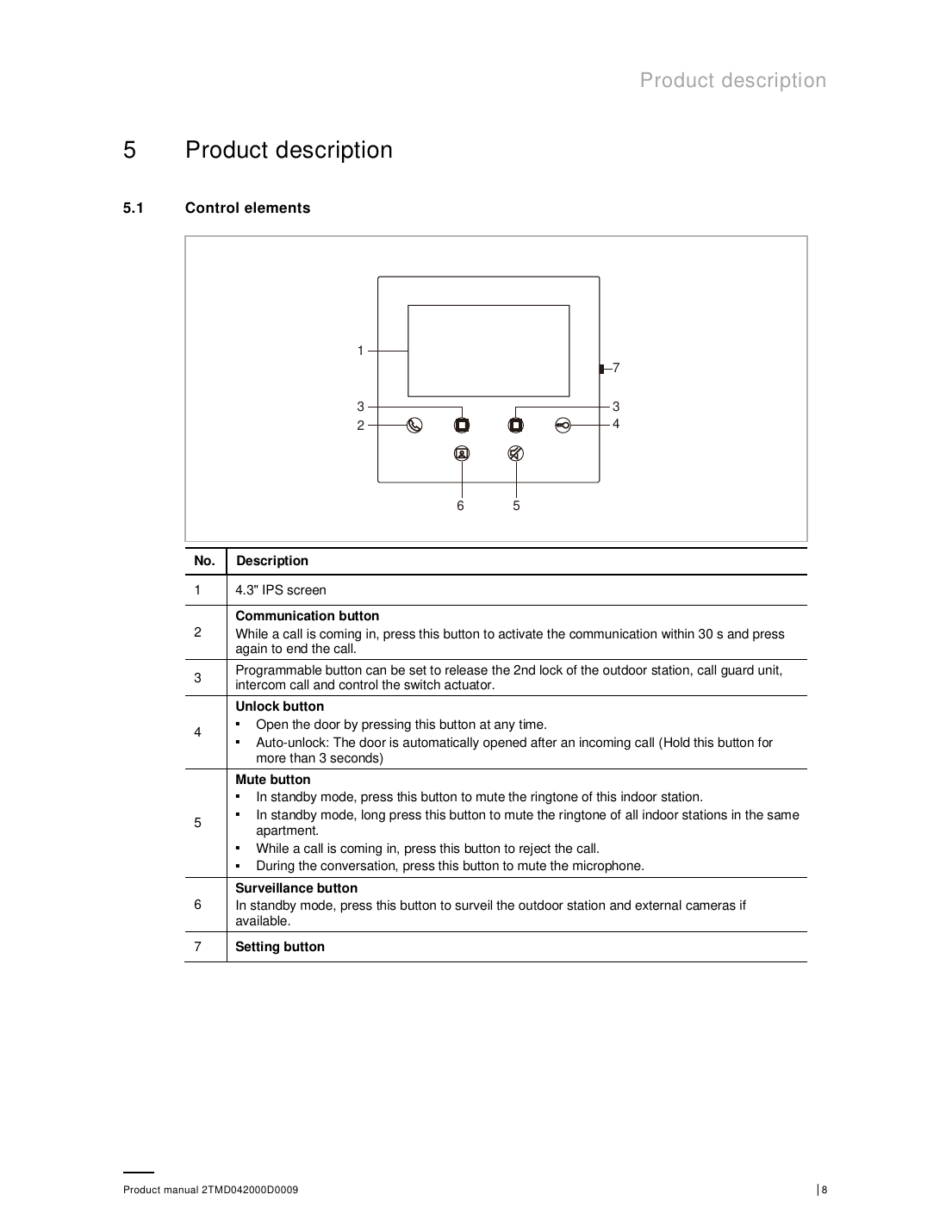
- Communication button — activates a call for 30s; press again to end.
- Programmable button — configurable for 2nd lock release, guard unit call, intercom call, or switch actuator control.
- Unlock button — opens the door anytime; hold 3+ seconds for auto-unlock after an incoming call.
- Mute button — mutes the ringtone (short press) or all indoor stations in the apartment (long press); rejects an incoming call or mutes the mic during a call.
- Surveillance button — views the outdoor station and any external cameras.
- Setting button — enters local device settings.
Terminal Description
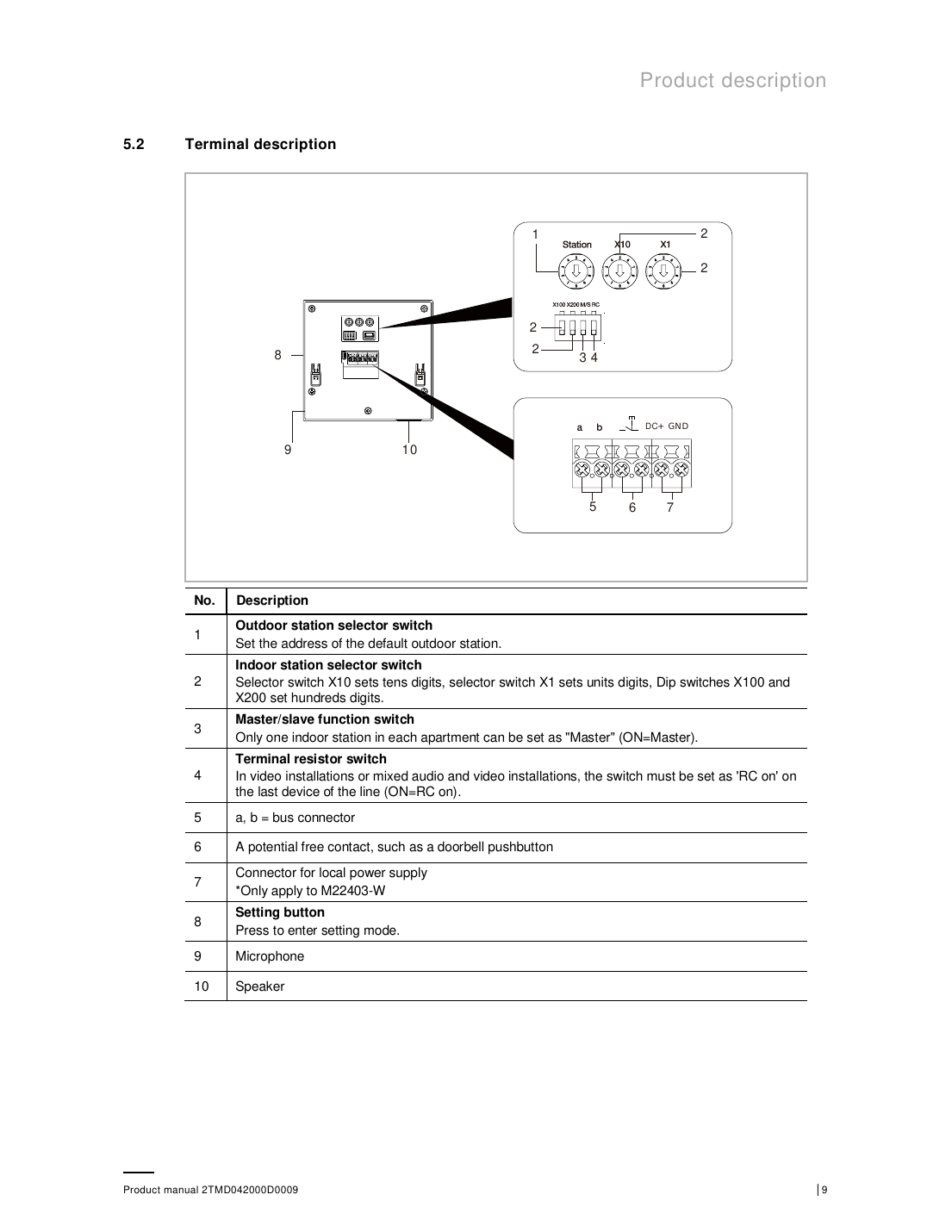
The indoor station address is set with two selector switches (tens/units digit) plus dip switches for the hundreds digit. Only one indoor station per apartment should be set to "Master" (ON). Set the terminal resistor switch to "RC on" on the last device on the bus line for video or mixed audio/video installations.
Technical Data
| Operating voltage range | 20-30 V DC |
| Standby current | 24 V DC, 45 mA |
| Operating current | 24 V DC, 330 mA |
| Operating temperature | 5°C to +45°C |
| Wire clamps | 2 x 0.28 mm² to 2 x 0.75 mm² (single- or fine-wire) |
| Wireless transmission power | Max. 20 dBm |
| Wireless standard | IEEE 802.11 b/g/n, 2.4 GHz |
| IP level | IP 30 |
Wiring Best Practices
- Terminate every branch of the bus wiring via a connected bus device (indoor station, outdoor station, or system device).
- Don't install the system controller directly next to the bell transformer or other power supplies (avoids interference).
- Don't run system bus wiring together with 100-240V wiring.
- Don't share cables between door-opener wiring and the system bus.
- Avoid bridging between different cable types.
- Use only two wires for the system bus even in a 4-core or multi-core cable, and never run incoming/outgoing bus (or internal/external bus) inside the same cable when looping.
Initial Setup & App Pairing
- Register a MyBuildings account at mybuildings.abb.com, then activate it via the confirmation email.
- Download the ABB Welcome app from Google Play or the Apple App Store (search "ABB Welcome").
- Log into the app — select "Setup Welcome," enter username/password/alias, and accept the terms.
- Select language on the panel (up to 16 languages) on first power-up.
- Accept the license on the panel.
- Wi-Fi setup — on the panel, press the setting button to bring up a QR code; in the app, go to Home > "∨" > "Pair devices" > "WiFi indoor station" and scan it. The app connects to the panel over Wi-Fi ("Join"), then transfers your home Wi-Fi credentials to the panel (DHCP by default, or set a static IP).
- MyBuildings login — enter your MyBuildings account/password in the app; it pairs the panel automatically after a moment.
Up to 8 apps can be paired to one Wi-Fi indoor station (and vice versa) under the same MyBuildings account, useful for multiple household members' phones.
Local Settings (via Setting Button)
- Ringtone — up to 5 selectable tones
- Volume — up to 5 levels
- Brightness — up to 5 levels (10s on-screen countdown)
- Color / Contrast — up to 5 levels each
- Language — up to 16 languages
- Restore to default settings — hold the setting button 3s to access
- Reset network configuration — hold the setting button 3s; does NOT change MyBuildings account settings
App-Based Settings
- Programmable button — assign functions like "Release the 2nd lock," intercom call, or switch actuator
- Camera search — pull the list of available IP cameras onto the system
- Outdoor station password — enable and set a 3-8 digit password
- User management — pair/unpair up to 8 apps per panel under the same MyBuildings account
- Device management — pair/unpair multiple Wi-Fi indoor stations to one app
Operation (via App)
- Calls from outdoor stations — accept, release default/2nd lock (or trigger light), end call, add to favorites, long-press to snapshot.
- Surveillance from outdoor stations or cameras — from the device list, tap a station/camera to start monitoring; release locks, initiate two-way audio (muted by default), snapshot, or favorite.
- Intercom — call another indoor station once the programmable button is set to "Intercom call."
- Switch actuator release — trigger a paired switch actuator from the "Access control" screen once configured.
- Call guard unit — reach the concierge/guard station from the app's "∨" menu.
- SOS — send an emergency alert to the guard unit from the app's "∨" menu.
- History — review recent calls and surveillance events.
Cyber Security Notes
This device connects to and communicates over a network interface, which must be on a secure network — firewalls, authentication, encryption, and antivirus protection are the customer's responsibility. Only firmware signed by ABB is accepted for updates; no custom code can be executed on the device. Follow the standard password rules: no continuously increasing/decreasing digit sequences, and no 3+ consecutive identical digits.