
ABB-Welcome IP Smart Access Point Lite (D04012) — Product & Operation Manual
Product manual for the ABB-Welcome IP Smart Access Point Lite — commissioning, device management, user management, and cyber security reference for the ABB video intercom/access control hub.
Full text manual (for reference)
Product manual for the ABB-Welcome IP Smart Access Point Lite (D04012, D04012-02) — the hub controller for the ABB-Welcome IP video intercom/access control system. It manages indoor stations, outdoor stations, guard units, IP actuators, ONVIF cameras, and user credentials from a browser-based web UI. This page summarizes commissioning, device/user management, and system reference details; the full downloadable PDF covers every settings screen.
Safety
- Electric voltage warning: Disconnect mains power before installation or disassembly. Work on the 100-240V supply system must be performed only by qualified electrical specialist staff.
- Incorrect installation endangers life and can cause serious property damage (e.g. fire). Apply the "five safety rules" (DIN VDE 0105, EN 50110): disconnect, secure against reconnection, verify no voltage, ground and short-circuit, cover/barricade adjacent live parts.
- Use suitable personal protective equipment, tools, and measuring devices; verify the supply network type (TN/IT/TT) before wiring.
Product Overview
The Smart Access Point is part of the ABB-Welcome IP system and can only be used with system accessories. Front-panel features:
- USB stick connector (reserved)
- Tamper switch with status indicator LED
- Binary input/output for interacting with other systems
- Reset button
- Access Point mode switch (LED flashes red when AP mode is active)
- Micro SD card connector (reserved)
- Security switch — ON blocks new devices from joining, OFF allows new devices (default)
- Power input connector (DC-JACK) and LAN (PoE) port
Status LED Reference
| Operation | LED Status |
|---|---|
| Power on | White, always on |
| In Access Point mode | Red, always on |
| Ready for operation (not in AP mode) | Green, always on |
| Tamper switch triggered | White, flash fast |
| Reset button held for 10 sec | White, flash slowly |
Technical Data
| Designation | Value |
|---|---|
| Rating voltage | 24V DC |
| Operating voltage range | 20-27V DC |
| Rating current | 24V DC, 375mA |
| PoE standard | IEEE 802.3af |
| Wireless standard | IEEE 802.11 a/b/g/n (2.4GHz & 5GHz bands) |
| Operating temperature | -10°C to +45°C |
| Storage temperature | -25°C to +70°C |
| Dimensions | 204 x 132 x 32 mm |
| IP / IK rating | IP30 / IK05 |
| Relay output | 30V DC, 1A |
| Dry contact input | 5V DC, 1mA |
Commissioning — Initial Setup
- Power on the Smart Access Point — it automatically enters Access Point (AP) mode on first boot (or after a system reset). You can also trigger AP mode manually via the AP mode switch; the LED turns red when successful.
- On a PC or mobile device, connect to the Smart Access Point's Wi-Fi network (named "SmartAP_xxx") using the security key printed on the device's label.
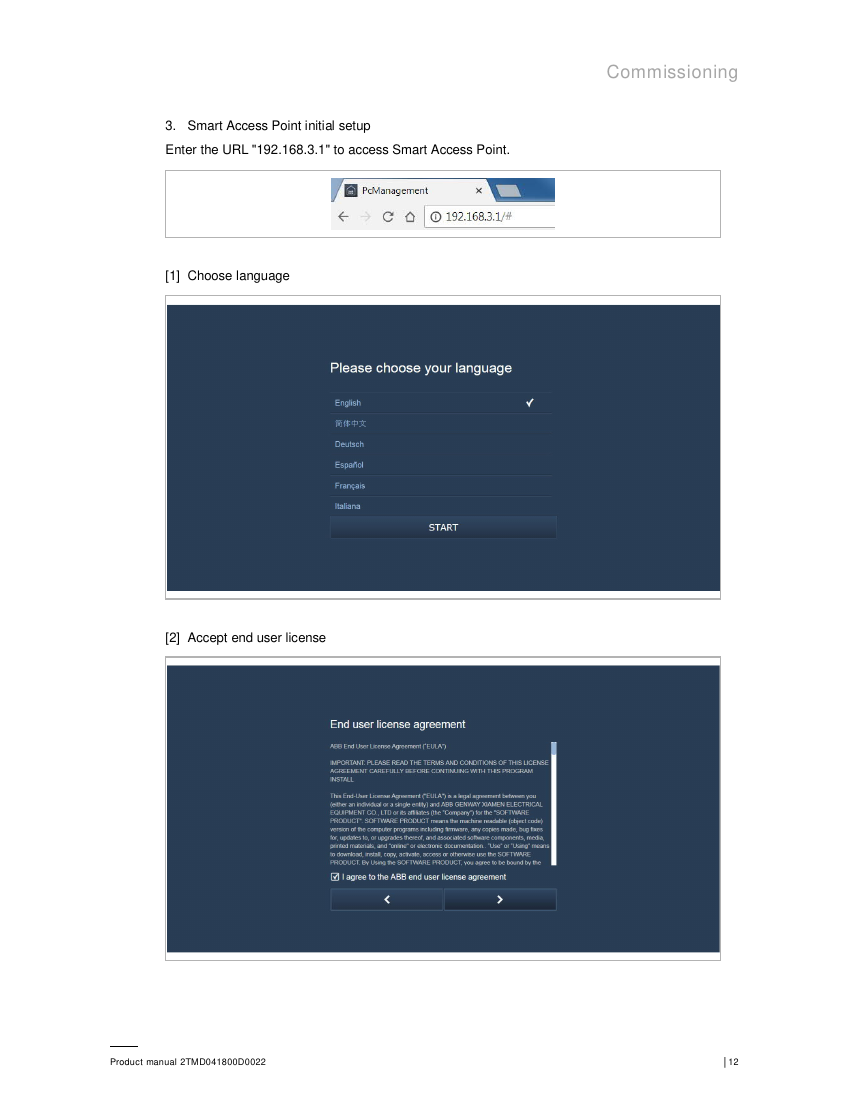
- Open a browser and navigate to 192.168.3.1 to reach the setup wizard.
- Step through: choose language → accept End User License → accept OSS license → accept data privacy → create an admin account → choose building type ("Functional" for public/commercial networks, "Residential" for home networks).
Device Management
From the Main Menu, use Device Management to add indoor stations, outdoor stations, guard units, and IP actuators — either automatically discovered on the network or manually by entering device type, address, and serial number.
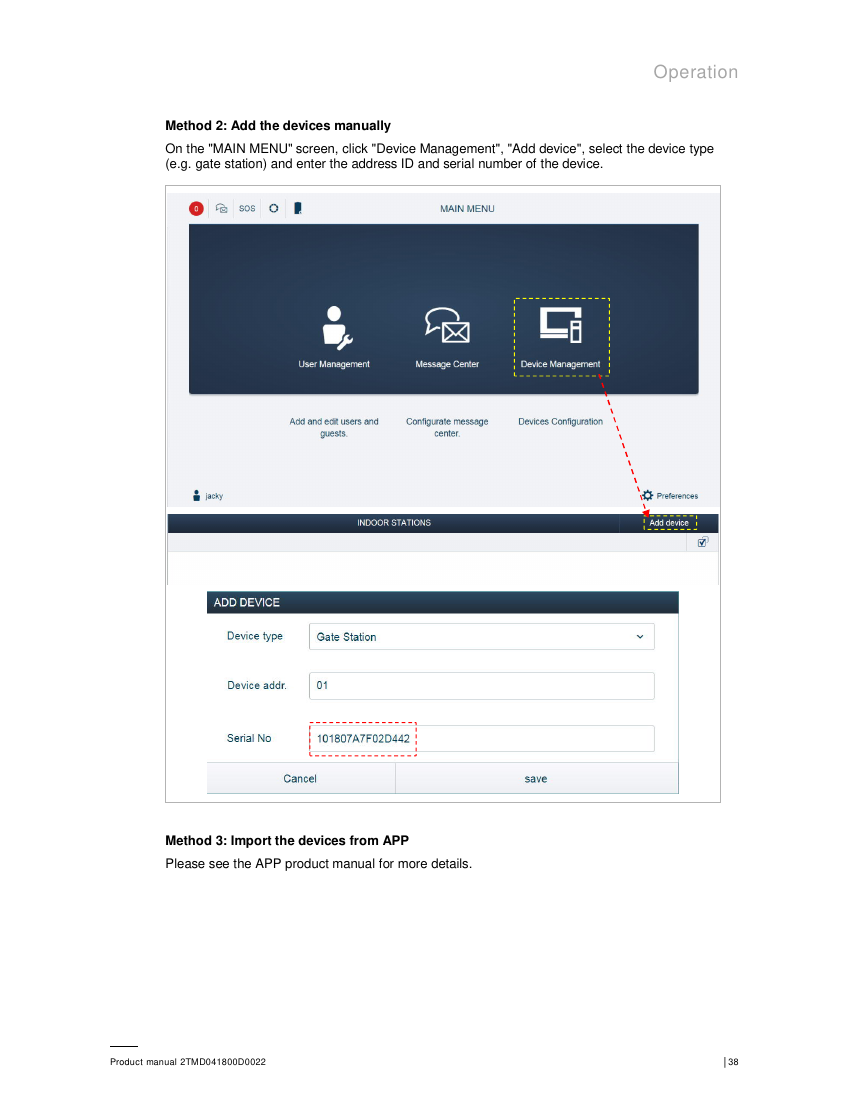
Settings on any device can be changed individually (select the device in its list, e.g. Indoor Stations) or in bulk (multi-select via checkboxes, then apply changes to all selected). Devices are deleted the same way — select one or more, then use the delete/trash control.
Pairing an ONVIF Camera
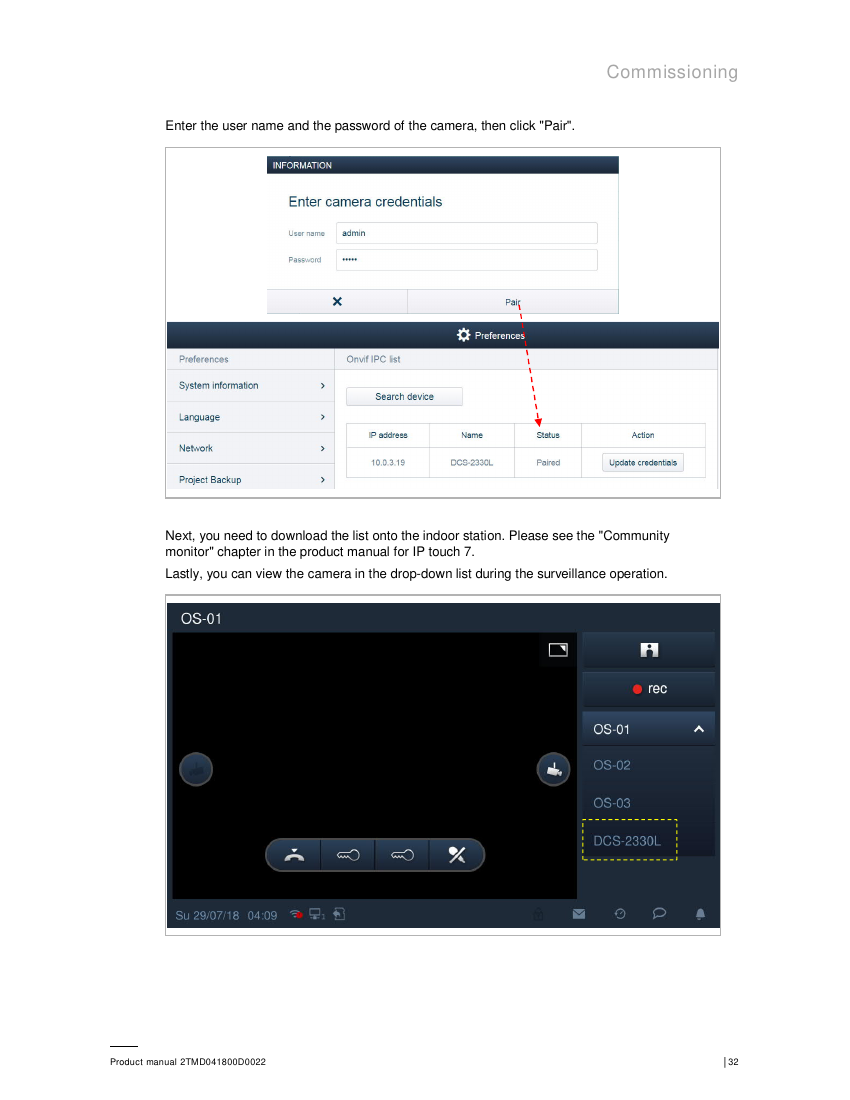
Under Preferences → Searching the ONVIF IPC, enter the camera's credentials to pair it. Once paired, the camera appears in the device list and its live feed can be viewed from a drop-down camera selector.
User Management
Users can be added one at a time or imported in bulk via a template. Each user can be assigned specific indoor stations and access cards. To edit a user, open their profile from the Users list — options include Edit User Account and Change Password.
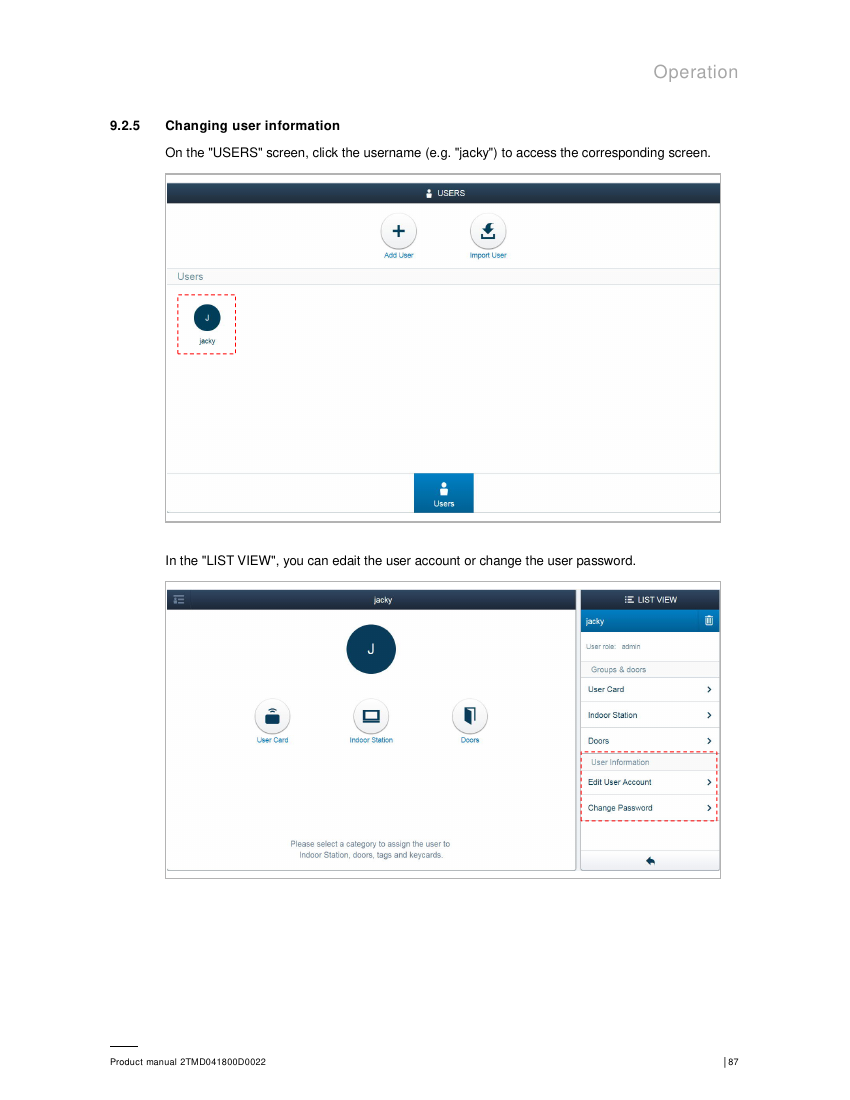
Deleting a user works the same way (select from list, use the delete icon) — note the primary admin account cannot be deleted.
Notifications
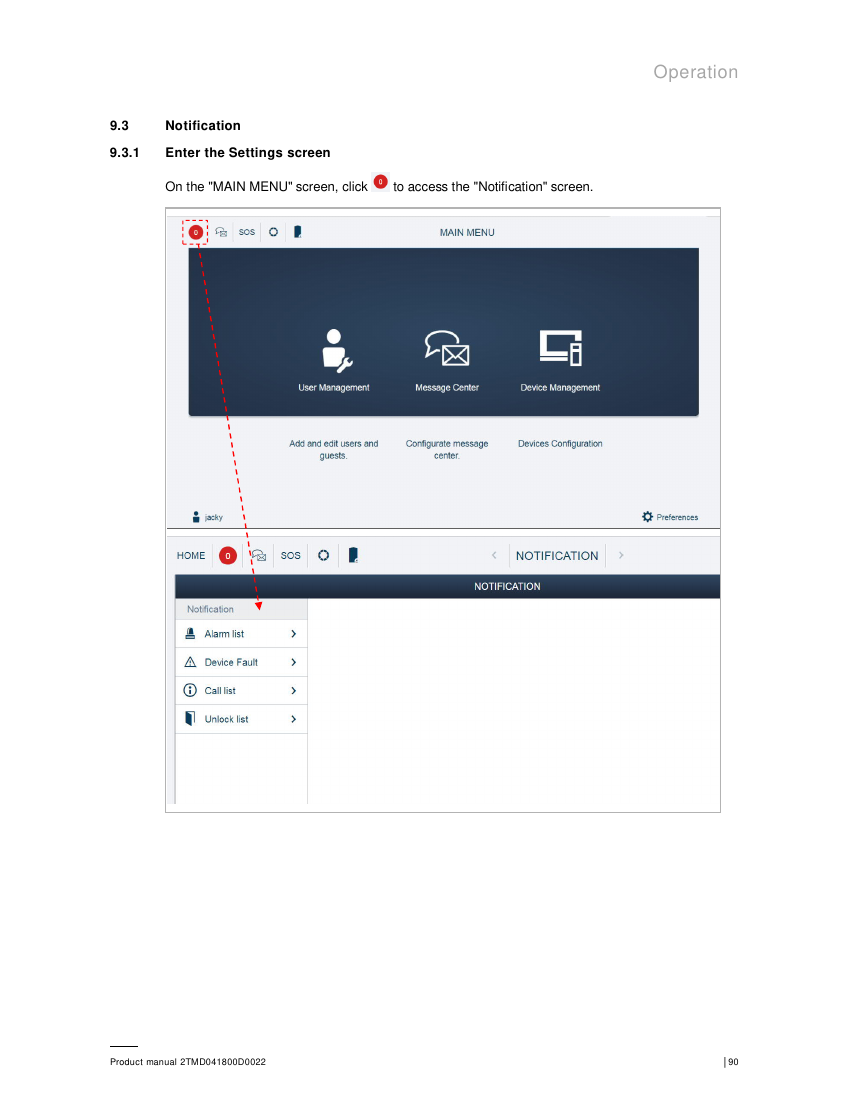
The Notification section (Main Menu → Notification) centralizes system events: Alarm list, Device Fault list, Call list, and Unlock list — useful for auditing who unlocked doors and when, and for spotting offline/faulted hardware.
Backup, Firmware & Cyber Security
- Backup/restore: Create a project backup after initial setup and after any major change (adding/removing devices). Export backups to external storage for safekeeping; backups can be re-imported by the admin user.
- Firmware updates: The system prompts when new firmware is available (via Preferences → Local or Online firmware update). Only firmware signed by ABB will be accepted — the device cannot run unsigned/custom code, which limits malware risk.
- Network security: Do not install in a public location; restrict physical access to trusted personnel. On a home network, avoid exposing the device via Dynamic DNS/public port-forwarding. When retiring the device, factory-reset it first to purge configuration and sensitive data.
- Key network ports: 80/443 (TCP, web UI), 5222/5269/5280/5281 (XMPP), 7000/8887/10700 (device RPC), 8888 (HTTP proxy for firmware), 1900/49152 (UPnP), 3333/7777 (UDP multicast/device services).
FCC Compliance
FCC ID: 2AEBL-D04012. Complies with Part 15 of the FCC Rules (Class B digital device). Human proximity to the antenna should not be less than 20cm (8 inches) during normal operation. Changes or modifications not expressly approved by the party responsible for compliance could void the user's authority to operate the equipment.